Pexlora
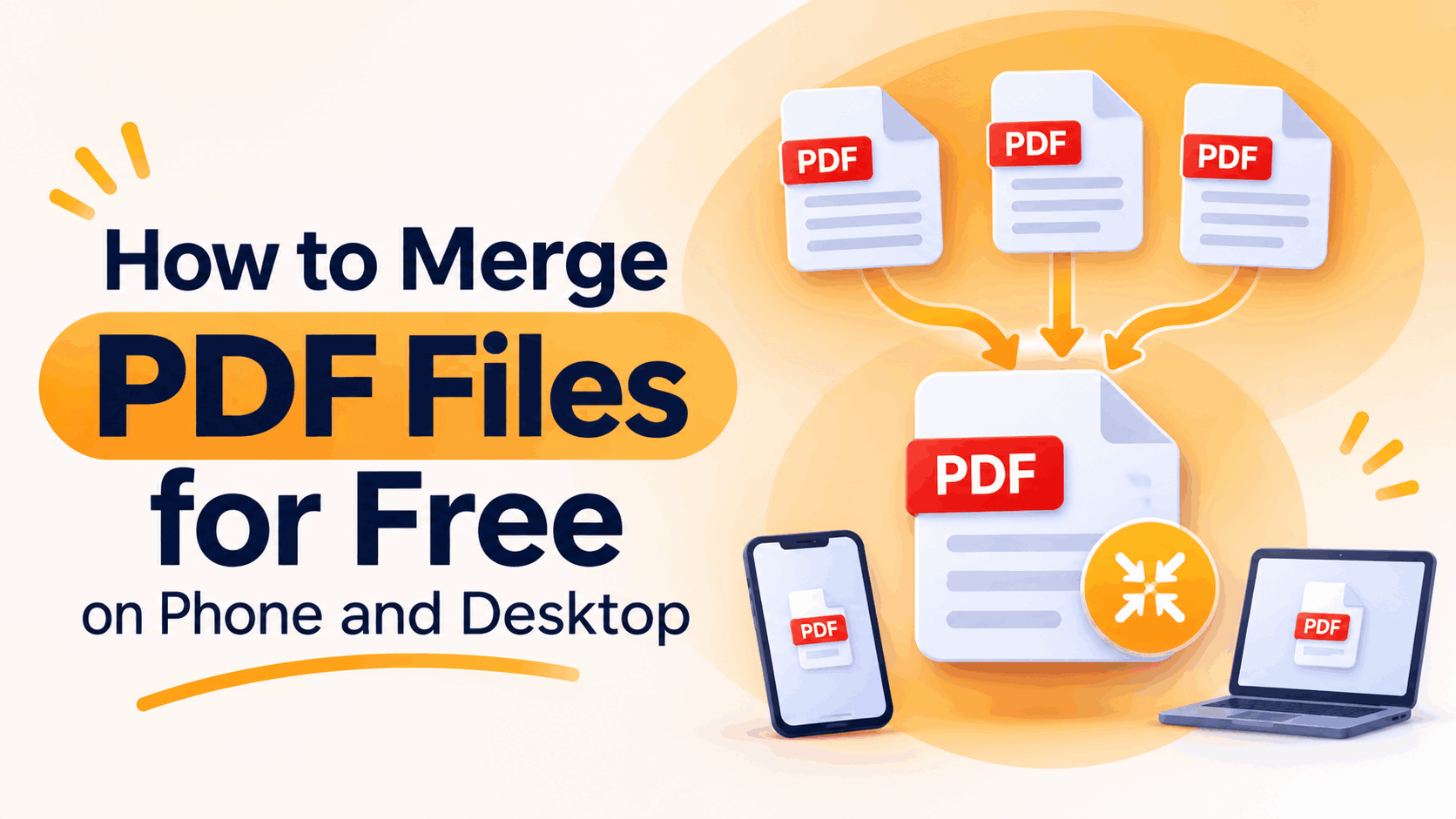
How to Merge PDF Files for Free on Phone and Desktop
Combine several PDFs into one file for free on Android, iPhone, Windows or Mac. Get the page order right, mix in photos, keep the size small and avoid common merge problems.

5 min read
On this page
Loan applications, visa files, college admissions and job portals love asking for "a single PDF". Meanwhile you have your Aadhaar as one file, a bank statement as another, three salary slips, and a photo of a rent agreement taken on your phone. Uploading them one by one isn't an option.
You can merge PDF files for free on any phone or computer in about a minute. The part that trips people up isn't the merging itself. It's getting the page order right, mixing in photos, and keeping the final file under the upload limit.
This guide shows the fastest way to combine PDFs on every common device, how to bring images and scans into the same file, and the fixes for the problems people usually hit, like sideways pages or a file that's suddenly 40 MB.
Before you merge: a two-minute checklist
A little preparation saves you from redoing the whole file later.
Numbering file names is the simplest trick here. Most tools sort files alphabetically when you upload them, so 01_, 02_, 03_ keeps everything in order automatically.
How to merge PDFs online
A browser tool works the same on Android, iPhone, Windows and Mac, and it's the fastest route for most people.
- Open Merge PDF.
- Upload all the PDFs you want to combine.
- Drag them into the order you want. The first file becomes the first pages.
- Merge and download the single PDF.
Open the result and scroll through it once before uploading anywhere. It takes ten seconds and catches mistakes like a missing page or a document in the wrong place.
Adding photos and scans to the same file
Real-world applications rarely come as neat PDFs. You'll usually have at least one photo of a document taken on your phone.
The cleanest approach is to convert images to PDF first, then merge everything together:
- JPG or PNG photos: use JPG to PDF or PNG to PDF. You can combine several images into one PDF, one image per page.
- iPhone HEIC photos: use HEIC to PDF, which skips the JPG step.
- WebP images saved from websites: use WebP to PDF.
For phone photos of paper documents, crop out the table or floor around the page before converting. A tightly cropped page looks far more professional and makes the final file smaller.
Built-in ways to merge on Mac and iPhone
Mac with Preview
Apple's Preview app can merge PDFs without any extra software, as described in Apple's guide to combining PDFs in Preview.
- Open the first PDF in Preview.
- Choose View, then Thumbnails, to show the page sidebar.
- Drag the second PDF from Finder into the sidebar, dropping it where you want those pages to go.
- Choose File, then Export as PDF, to save a new combined file.
Exporting as a new file, rather than just saving, protects your original document.
iPhone and iPad with the Files app
In the Files app, tap Select, choose the PDFs and images you want, tap the three-dot menu, and choose Create PDF. Files merges them in the order they appear in the folder, which is another reason numbered file names help.
Windows
Windows has no built-in merge tool. The print-to-PDF option can save one document at a time, but it can't join several into one. You can buy a PDF editor, but for occasional use a browser tool is quicker and free. If your office already licenses Adobe Acrobat, its Combine Files feature does the same job.
A real example: a home loan file
Rahul's bank asks for one PDF containing his PAN, Aadhaar, six months of bank statements, three salary slips and the property agreement. He has the statements and slips as PDFs from email, the IDs as phone photos, and the agreement as a 14-page scan.
He crops and converts the ID photos with JPG to PDF, rotates two sideways pages in the scan, and renames everything from 01_pan to 12_agreement. The first merge comes out at 31 MB because the agreement was scanned at high resolution in colour. He re-scans it in greyscale at 200 DPI, merges again, and the final file is under 8 MB, well inside the bank's 10 MB limit.
Keeping the merged file small
Merged files grow fast, especially when they include scans. A single phone photo of a page can be 3 to 5 MB, so ten of them can easily blow past a portal's limit.
| Cause of a large file | Fix |
|---|---|
| High-resolution phone photos | Resize images to around 1500–2000 pixels on the long side before converting |
| Scanned at 600 DPI | Re-scan at 200–300 DPI, which is plenty for documents |
| Colour scans of black text | Scan in greyscale or black and white |
| Uncropped photos with background | Crop to the page edges before converting |
Resizing images before they go into the PDF is the single biggest saving. Use the image resizer on your photos, then convert and merge. Our guide on compressing images without losing quality explains the settings in more depth.
Fixing common merge problems
Pages are sideways or upside down
Rotate the affected file with Rotate PDF before merging, or reorganise pages in the merged file afterwards.
One file won't upload to the merge tool
It's probably password-protected. Open it with the password, save an unlocked copy if you're allowed to, and merge that instead.
The order is wrong
Drag files into order before merging. If you've already merged, use Organize PDF to move pages around without starting again.
You only need some pages from a document
Extract them first. Our guide on splitting a PDF shows how to pull out just the pages you need.
Frequently asked questions
Can I merge PDF files on my phone?
Yes. Browser tools work on Android and iPhone, and iPhones can also merge with the Files app's Create PDF option.
Does merging PDFs reduce quality?
No. Merging copies pages into a new file without re-compressing them, so text and images look the same as in the originals.
Can I merge PDF and JPG files together?
Convert the images to PDF first, then merge all the PDFs. Some tools do this in one step, but converting first gives you more control over order and size.
How many PDFs can I merge at once?
Most tools handle dozens of files. The practical limit is usually the total size of the final file rather than the number of documents.
One last check before you hit upload
Open the merged file on the device you'll upload from and scroll through every page. Check the order, make sure every page is upright, and confirm the file size is under the limit. It's far easier to fix now than after a portal rejects your application.