Pexlora
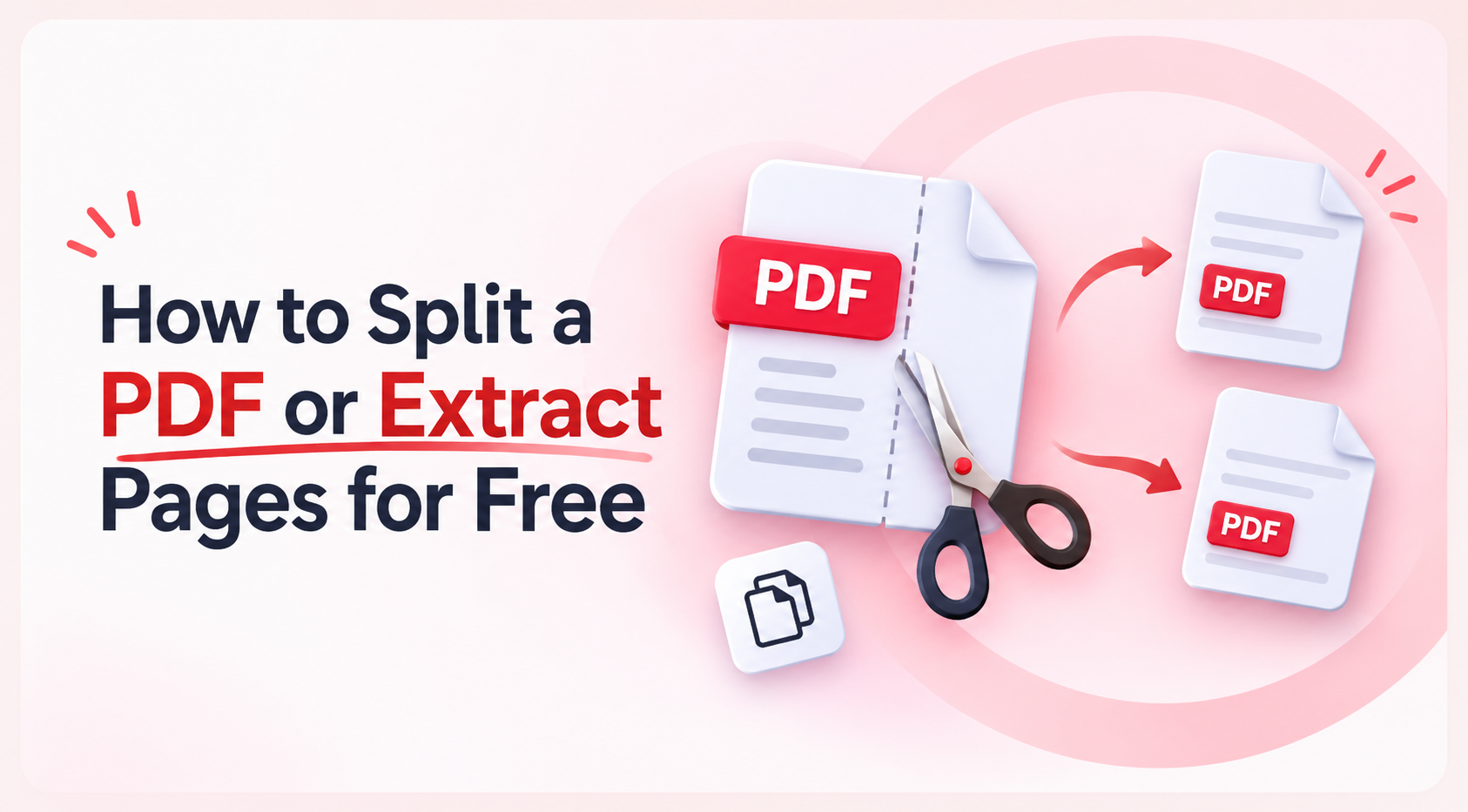
How to Split a PDF or Extract Pages for Free
Need just one page from a long PDF, or each page as its own file? Learn how to split a PDF and extract pages for free on a phone, Windows or Mac, without losing quality.

5 min read
On this page
A bank asks for page 3 of your salary slip bundle. A college portal wants your Class 10 marksheet, but it's buried inside a 40-page scanned folder. Or a client needs only the signed pages of a contract. In each case, sending the whole file is either rejected, too large to upload, or shares more than you meant to.
Knowing how to split a PDF solves all of these. You can pull out a single page, a range of pages, or break a document into one file per page. It takes under a minute and doesn't need paid software.
This guide covers three ways to do it: a browser tool that works on any device, the built-in tricks on Windows and Mac, and how to choose between splitting, extracting and reorganising. You'll also see the common mistakes that cause blurry pages or missing content.
Split, extract or organise: which do you need?
These terms get used loosely, but they solve slightly different problems. Picking the right one saves time.
| Task | What you get | Best for |
|---|---|---|
| Split every page | One PDF per page, often in a ZIP | Separating a bundle of scanned certificates |
| Extract a range | One new PDF with only the pages you chose | Sending pages 5–8 of a report |
| Delete pages | The original minus unwanted pages | Removing blank or duplicate scans |
| Reorder pages | The same pages in a new order | Fixing a scan that came out backwards |
The first is a split. The other three are really "organise" jobs, and they're often quicker in a tool that shows page previews.
How to split a PDF online
A browser tool is the fastest option, and it works the same on Android, iPhone, Windows and Mac.
- Open Split PDF.
- Upload your file.
- The tool saves each page as its own PDF.
- Download the ZIP, then open it to get the individual pages.
On a phone, your file manager can open ZIP files directly. On iPhone, tap the ZIP in the Files app and it extracts automatically.
To extract or delete specific pages
When you only need a few pages, use Organize PDF instead. You'll see a thumbnail of every page, so you can delete the ones you don't want, drag the rest into order, or extract a selection into a new file. Thumbnails matter with scanned documents, where page numbers often don't match what's actually on each page.
The print-to-PDF trick (no tools needed)
Every modern computer and phone can "print" to a PDF file, and the print dialog lets you choose a page range. That makes it a handy way to extract pages when you're offline.
- Open the PDF in Chrome, Edge or any PDF viewer.
- Press Ctrl + P on Windows or Cmd + P on Mac.
- Set the printer to Save as PDF or Microsoft Print to PDF.
- Under Pages, choose Custom and enter the range, such as
3or5-8. - Save the new file.
This works well for text documents. The downside is that it re-renders the pages, so fillable form fields, links and bookmarks can be flattened or lost. For scanned documents, it may also lower image quality depending on your print settings.
On Windows specifically
Windows doesn't include a dedicated PDF editor, but Microsoft Edge opens PDFs by default and its print dialog supports custom page ranges. "Microsoft Print to PDF" is built into Windows 10 and 11, so you can extract pages without installing anything. If you need a page range from several PDFs at once, a browser tool is quicker than repeating the print dialog for each file.
The custom range box also accepts scattered pages. Entering something like 2,5,9 collects just those pages into one new file, which is a quick way to pull the first page of each chapter or every signed page of a contract into a single document.
Splitting on a Mac with Preview
Macs have a cleaner built-in option. Apple's Preview app lets you work with page thumbnails directly.
- Open the PDF in Preview.
- Choose View, then Thumbnails, to show the sidebar.
- Select the pages you want. Hold Cmd to pick several.
- Drag them from the sidebar onto your desktop. Preview creates a new PDF with just those pages.
Because Preview copies the pages rather than re-printing them, quality and links are usually preserved.
Common mistakes and how to avoid them
- Converting to images first. Turning a PDF into JPGs and back loses searchable text and can blur small print. Split the PDF directly instead.
- Forgetting password protection. Encrypted PDFs often refuse to split. Open the file with its password and save an unlocked copy first, if you're allowed to.
- Splitting before rotating. If scanned pages are sideways, fix them first with Rotate PDF. Otherwise every split file needs fixing separately.
- Ignoring file size limits. If a single extracted page is still too large for a portal, that's usually because it's a high-resolution scan. Re-scanning at a lower resolution often helps more than any other fix.
A real example: a scanned certificate bundle
Meera scanned all her academic documents into one 22-page PDF for safekeeping. A university application wants each certificate uploaded separately, with each file under 1 MB.
She opens the bundle in Organize PDF, deletes three blank pages the scanner added, rotates two sideways pages, and saves. Then she runs the cleaned file through Split PDF and gets nineteen separate files in a ZIP. She renames each one clearly, like class10_marksheet.pdf and degree_certificate.pdf, so she can find the right one quickly during the application.
If she later needs to send several of them as one file, our guide to merging PDF files covers the reverse process.
Is it safe to split PDFs online?
It's a fair question when the document is a payslip, bank statement or ID. Check how a tool handles files before uploading anything sensitive. Look for clear statements that files are deleted after processing and not used for anything else. Pexlora explains its approach on the security page.
For extremely sensitive documents, the print-to-PDF method or Preview on a Mac keeps everything on your own device.
Frequently asked questions
How do I save just one page of a PDF?
Use the print dialog and choose "Save as PDF" with a single page number, or use an online organiser to extract that page into a new file.
Does splitting a PDF reduce quality?
Not when the tool copies pages directly. Quality can drop if the pages are re-printed or converted to images along the way.
Can I split a PDF on my phone?
Yes. Browser-based tools work on Android and iPhone, and the downloaded ZIP opens in your phone's file manager.
Why can't I split my PDF?
It's usually password-protected or restricted. Open it with the password and save an unlocked copy if you have permission, then split that copy.
Keep the original safe
Always split a copy and keep the full original document untouched. It costs nothing, and you'll be glad of it the next time someone asks for a page you didn't extract the first time.