Pexlora
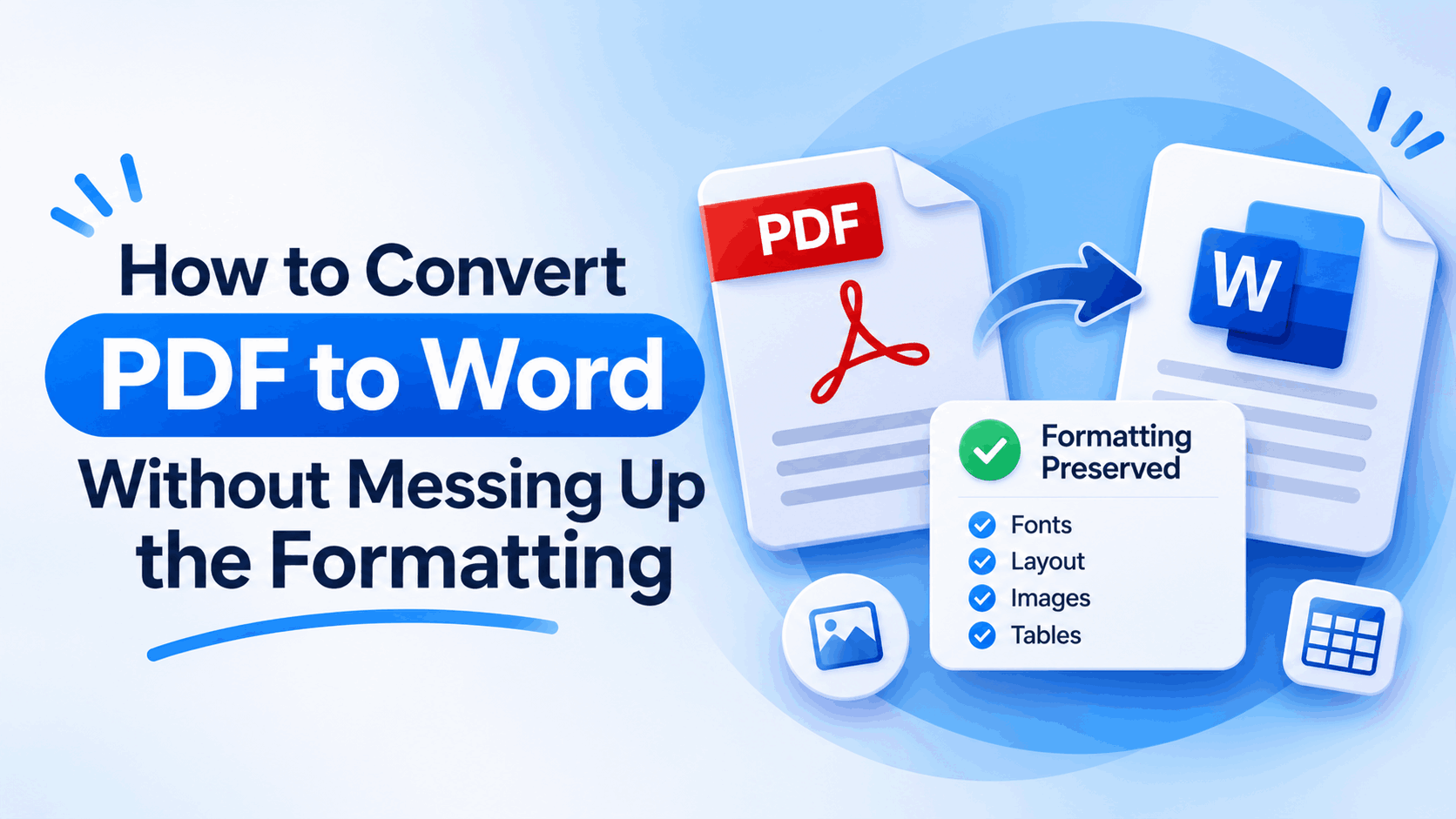
How to Convert PDF to Word Without Messing Up the Formatting
PDF to Word conversions often come out with broken tables, odd fonts and text boxes everywhere. Learn why it happens and how to convert PDF to Word while keeping the formatting.

6 min read
On this page
You need to update one paragraph in a PDF: a new address in a rental agreement, a revised date on a quotation, a corrected name on a certificate draft. You convert it to Word, open it, and the layout falls apart. Text sits in floating boxes, the table has become tabs, and the font is something you've never seen.
Converting PDF to Word without losing formatting is possible for most documents, but it helps to know why conversions break in the first place. Once you understand what's going on inside a PDF, you can pick the right method and fix the remaining issues in minutes instead of rebuilding the document by hand.
This guide explains why PDF layouts don't translate cleanly, which documents convert well and which don't, the best way to handle scanned PDFs, and a short clean-up routine for whatever the converter gets wrong.
Why PDF to Word conversion breaks layouts
A Word file and a PDF store text in completely different ways. Word stores structure: this is a heading, this is a paragraph, this is a table with three columns. When you add a sentence, everything below it flows down naturally.
A PDF stores positions. It says, in effect, "draw these characters at this exact spot on the page". There's often no record that a group of lines forms a paragraph, or that a grid of text is a table. The format was designed so a document looks identical everywhere, and the PDF standard prioritises faithful appearance over easy editing.
A converter has to guess the structure back from those positions. Simple layouts are easy to guess. Multi-column pages, nested tables, sidebars and headers in odd places are much harder, and that's where you see floating text boxes and broken tables.
Which PDFs convert well, and which don't
| Type of PDF | Expected result | Why |
|---|---|---|
| Exported from Word or Google Docs | Very good | Clean text and simple structure |
| Letters, CVs, simple reports | Good | Mostly single-column paragraphs |
| Invoices and forms with tables | Fair | Tables often need manual fixing |
| Brochures and magazines | Poor | Complex layouts and overlapping elements |
| Scanned documents | Depends on OCR | The page is an image, so text must be recognised first |
If your PDF was originally made in Word, the best move is often to ask the sender for the original .docx. That's always better than any conversion.
How to convert PDF to Word online
For most text-based PDFs, a dedicated converter gives the cleanest result.
- Open PDF to Word.
- Upload your PDF.
- Download the .docx file.
- Open it in Word or Google Docs and check headings, tables and page breaks.
If you only need the words, not the layout, PDF to Text is often better. You get clean plain text with no stray boxes to delete, which is ideal for pasting into an email or a new document.
Other ways to convert
Microsoft Word itself
Recent versions of Word can open a PDF directly. Choose File, Open, and select the PDF. Word warns that it will convert the file and that the result may not look exactly like the original. For simple documents this works well, and you don't need any other tool.
Google Docs
Upload the PDF to Google Drive, right-click it and choose Open with Google Docs. Google converts it and applies text recognition. Google's own help page on converting PDFs notes that this works best on clear files with common fonts. Formatting is usually simpler than Word's result, which can actually be easier to clean up.
Handling scanned PDFs
A scanned PDF is just a photo of a page wrapped in a PDF. There's no text inside at all until software reads the image and recognises the characters, a process called OCR (optical character recognition).
OCR quality depends heavily on the scan. Clear, straight, high-contrast pages convert well. Crooked phone photos, faint printing and handwritten notes produce errors.
- Straighten and crop before converting. A tilted page confuses OCR.
- Use good resolution. Around 300 DPI is a sensible target for text.
- Check numbers carefully. OCR commonly confuses 0 and O, 1 and l, and 5 and S. That's a big deal in invoices and IDs.
- Expect to retype tables. Scanned tables rarely survive OCR intact.
A five-minute clean-up routine
Even a good conversion usually needs a little tidying. Work through these in order.
- Turn on formatting marks. In Word, click the ¶ button to see paragraph breaks, tabs and spaces. Most layout problems become obvious.
- Remove manual line breaks. Converters often end every line with a break. Use Find and Replace to replace
^pbreaks inside paragraphs with spaces. - Apply styles. Select headings and apply Heading 1 or 2. Select body text and apply Normal. This fixes most font inconsistencies at once.
- Rebuild broken tables. If a table came through as tabbed text, select it and use Insert, Table, Convert Text to Table.
- Check page breaks. Delete stray section breaks that push content onto new pages.
For a two-page letter, this takes a few minutes and produces a document you can edit freely.
An example: updating a rental agreement
Sunita has her landlord's rental agreement as a PDF and needs to change the rent amount and the start date for the renewal. She converts it, and the body text comes through cleanly, but the schedule of payments at the end arrives as rows of text separated by tabs.
She fixes the body by applying the Normal style, then selects the payment rows and uses Convert Text to Table, which rebuilds the grid in seconds. After updating the figures, she exports it back to PDF and sends it for signatures. The whole job takes about ten minutes, compared with an hour retyping the agreement from scratch.
Do you really need Word?
Sometimes conversion isn't the best fix. If you only need to add a page number, a watermark or a page from another file, you can do that to the PDF directly. Our guide to adding a watermark to a PDF and the page numbering tool both work without touching Word. And if you need to send the edited Word file back as a PDF, Word to PDF completes the round trip.
Frequently asked questions
Why does my converted Word file have text boxes everywhere?
The converter couldn't work out how the text flowed, so it placed each block in its own box to match the PDF's appearance. Simpler conversions, or Google Docs, often produce cleaner flowing text.
Can I convert a scanned PDF to Word?
Yes, using OCR. The quality depends on how clear the scan is, and you should always proofread numbers and names afterwards.
Will fonts stay the same after conversion?
Only if the same fonts are installed on your computer. Otherwise Word substitutes a similar font, which can change spacing and line breaks.
Is it free to convert PDF to Word?
Yes. Online converters, Microsoft Word's built-in PDF opening, and Google Docs all offer free options for everyday documents.
When the layout really matters
If the document is heavily designed, like a brochure or a certificate template, don't fight the conversion. Use the converted file to copy the text, then rebuild the design in a fresh Word or Canva document. It's often faster, and the result is cleaner than any converted layout.