Pexlora
How to Remove Hidden Metadata from PDF and Word Files
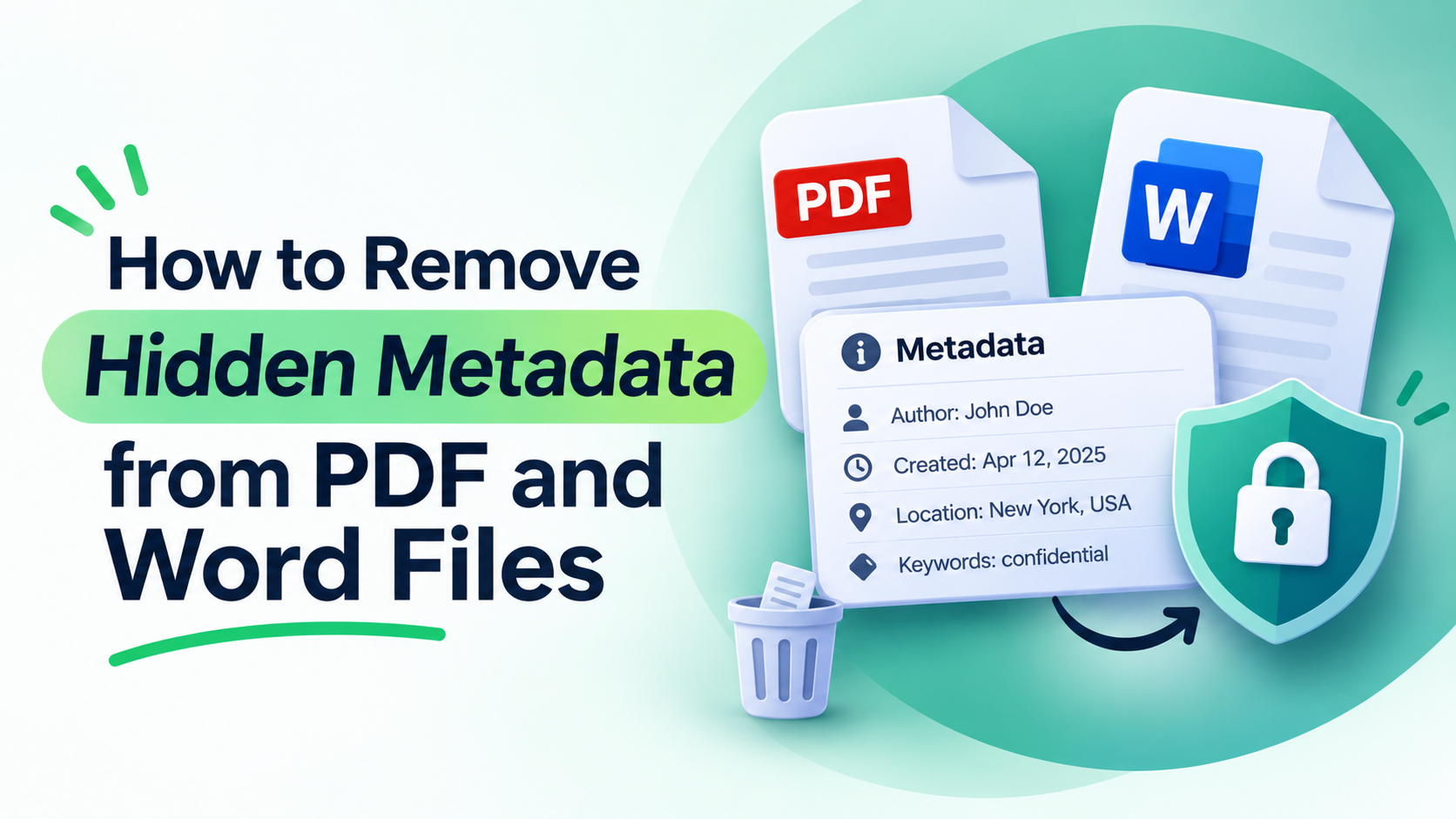
PDFs and Word files quietly store your name, company, edit history and comments. Learn what document metadata reveals and how to remove it before you send a file.

5 min read
On this page
You send a CV to a recruiter. Inside the file, invisible to you, it says the document was created by your current employer's IT account and last edited on a company laptop. Or a freelancer sends a proposal to a client, and the PDF's properties still show a different client's name from the template it came from.
Documents carry more than the words on the page. Word, Excel, PowerPoint and PDF files store metadata: author names, company names, software versions, edit dates, comments and sometimes earlier drafts. Learning to remove metadata from PDF and Office files before sharing them takes a minute and avoids some genuinely awkward moments.
This guide shows what hidden data your documents contain, how to check for it, and three ways to remove it, from Microsoft's built-in tool to a quick browser cleaner.
What hidden data your documents carry
The amount varies by file and software, but these are the most common items.
| Hidden item | Found in | Why it matters |
|---|---|---|
| Author and "last modified by" | Word, Excel, PowerPoint, PDF | Reveals your name or your employer's account |
| Company and manager fields | Office files | Shows where you work or who the file was made for |
| Comments and tracked changes | Word, Excel, PowerPoint | Exposes internal notes and earlier wording |
| Hidden text, rows and sheets | Word, Excel | Content you forgot was there |
| Creator and producer software | Shows which apps and versions you use | |
| Creation and modification dates | All | Can contradict when you said something was written |
Microsoft's own Document Inspector guide lists even more, including custom XML data, headers and footers, invisible on-slide content in PowerPoint, and speaker notes.
How to check what's inside a file
Before cleaning, it's worth seeing what's actually there. It often surprises people.
- Word, Excel, PowerPoint: open the file and go to File, then Info. The right-hand panel shows author, last modified by, and related dates.
- PDF on Windows: right-click the file, choose Properties, then the Details tab.
- PDF in a viewer: most PDF readers have a Document Properties option in the File menu.
- Any file: drop it into the Metadata Viewer for a full list, including fields the built-in panels don't show.
Method 1: Microsoft's Document Inspector
If you have Microsoft Office, the Document Inspector is built in and thorough.
- Save a copy of your document, so the original keeps its comments and history.
- Open the copy and go to File, then Info.
- Click Check for Issues, then Inspect Document.
- Leave all boxes ticked and click Inspect.
- Click Remove All next to each category you want cleaned, such as Document Properties and Personal Information, or Comments and Revisions.
- Save the file.
Take care with headers, footers and hidden text. The inspector can remove those too, but you might actually need them. Read each result before clicking Remove All.
Method 2: A browser cleaner for PDF and Office files
If you don't have Office, or you need to clean a PDF, a browser tool is quicker.
- PDFs: use the PDF Metadata Remover to strip author, creator, producer, dates and XMP data.
- Word, Excel and PowerPoint: use the Office Metadata Remover to clear document properties.
Upload the file, download the cleaned copy, and check it again in the viewer to confirm the fields are empty.
Method 3: Export a fresh PDF
When you're sending a final version, exporting a new PDF from Word or Google Docs is a simple way to leave a lot behind. Tracked changes, comments and hidden text usually don't carry into the PDF if they're resolved first.
The catch is that the exported PDF can still pick up the author name from your account. Google Docs typically sets the PDF title from the document name, and Word fills the author from your Office profile. Run the exported file through a metadata cleaner afterwards, or set the title and author fields before exporting.
Excel and PowerPoint gotchas
Word gets most of the attention, but spreadsheets and slide decks hide even more.
In Excel, hidden rows, hidden columns and entire hidden sheets travel with the file. A sales sheet sent to a client might still contain a hidden tab with your margins or another customer's pricing. Right-click any sheet tab and choose Unhide to see what's there before sending. External links to other workbooks can also reveal file paths and folder names on your computer.
In PowerPoint, speaker notes are the classic leak. Notes written for yourself, like "don't mention the delay" or "they'll push back on price", are saved inside the file and anyone can read them. Objects dragged off the edge of a slide stay in the file too. Check the notes pane and zoom out on each slide before sharing a deck as a .pptx. Exporting to PDF without notes avoids both problems.
A real-world example
Arjun is a freelance designer who reuses a proposal template. He sends a quote to a new client as a PDF. The client opens Document Properties and sees the title field still reads "Proposal for Sharma Textiles", a different client, and the author shows his previous agency's name.
Nothing in the visible document was wrong, but it looked careless and raised questions about confidentiality. Now Arjun's routine is simple: export the PDF, run it through the PDF Metadata Remover, and set a clean title before sending. It adds about thirty seconds to each proposal.
Which documents to clean, and which to leave alone
Not every file needs cleaning. Metadata is useful inside a team, where author names and version history help people collaborate.
- Clean before sending outside your organisation: CVs, proposals, quotes, contracts, legal documents, press releases.
- Clean before posting publicly: PDFs on your website, downloadable guides, forms.
- Leave alone: internal drafts, shared working documents, and anything where version history matters for compliance.
Photos you attach to documents carry their own metadata, including GPS location. Our guide to removing GPS location from photos covers that side.
Frequently asked questions
Can people see who wrote a PDF?
Often, yes. Most PDFs store an author field, and anyone can view it in Document Properties. It usually comes from the account name on the computer that created the file.
Does saving as PDF remove metadata?
It removes some things, like resolved comments, but usually keeps author, title and dates. Use a metadata cleaner on the final PDF to be sure.
Is it legal to remove metadata from documents?
For your own documents, yes. In legal disputes or regulated industries, though, deleting metadata from files you're required to preserve can be a problem, so check your obligations first.
Will removing metadata change how the document looks?
No. Properties like author and creation date are stored separately from the visible content, so the pages look exactly the same afterwards.
Build it into your send routine
Before any important document leaves your hands, open File, then Info, and glance at the author and company fields. If anything there would surprise the recipient, clean the file. It's a five-second check that catches the most common leaks.