Pexlora
How to Remove GPS Location from Photos Before Posting
Your phone hides exact GPS coordinates inside every photo. Learn how to check for them and remove GPS location from photos on iPhone, Android and desktop before you share.

7 min read
On this page
Every photo your phone takes can carry the exact spot where you stood when you pressed the shutter. That location sits inside the file as GPS coordinates, accurate enough to point to a house, a school gate or an office desk. If you want to remove GPS location from photos before posting them, you need to know where the data hides and which sharing routes keep it intact.
This matters more than it used to. People sell items from home on marketplaces, send photos to strangers for rentals and freelance work, and upload pictures to forums, cloud folders and email threads that never touch a social network. Many of those routes pass the original file along untouched, coordinates included.
By the end of this guide you will know how to check whether a photo contains location data, how to strip it on iPhone, Android and desktop, and how to stop your camera from adding it in the first place.
Where GPS location hides inside a photo
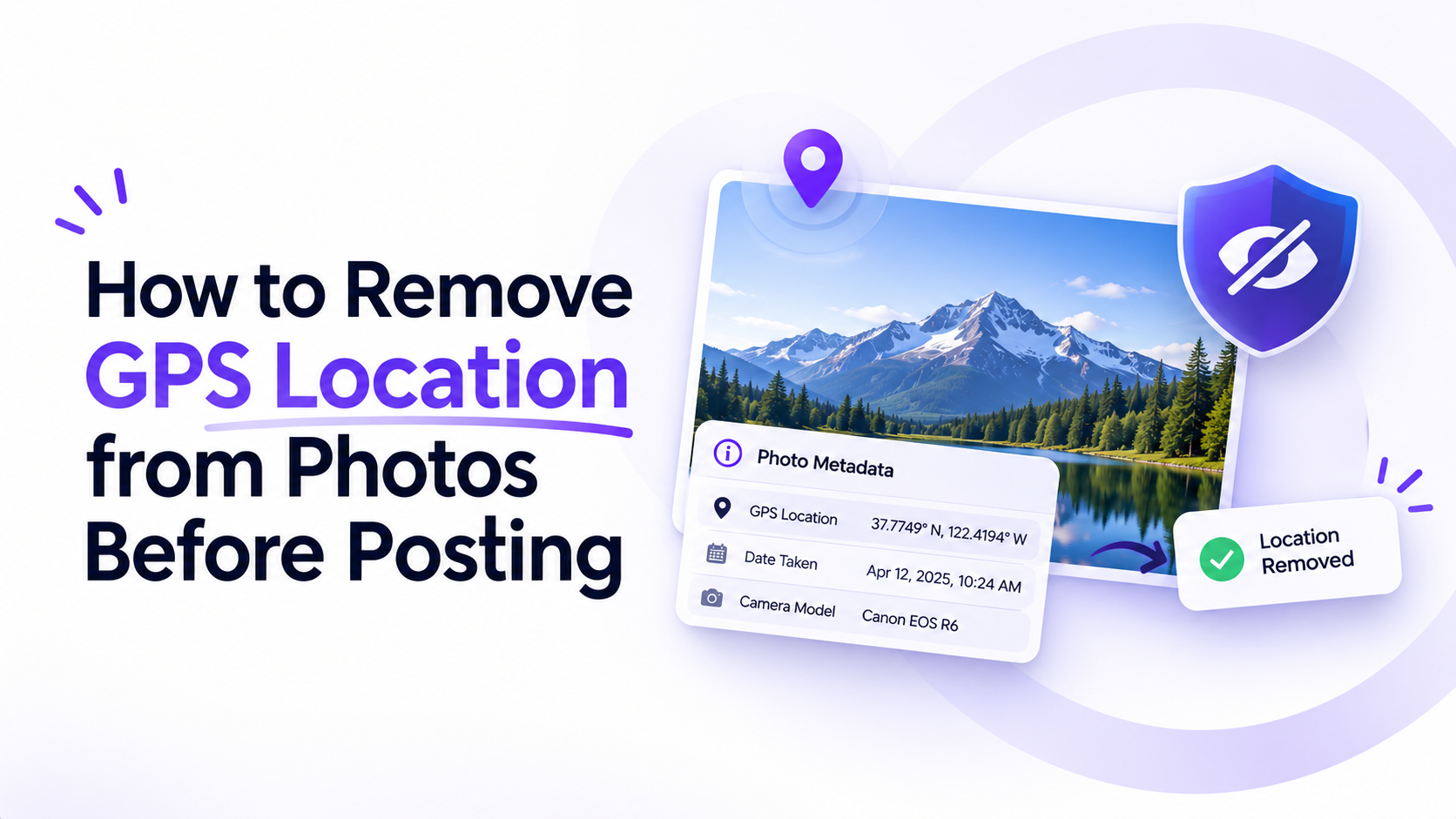
Photos store extra information in a block called EXIF (Exchangeable Image File Format). Alongside the camera model, lens, exposure and date, EXIF has a dedicated GPS section. The ExifTool GPS tag reference lists the fields it can hold: latitude, longitude, altitude, direction the camera faced, speed, and a GPS timestamp.
Your phone fills these fields automatically when location access is enabled for the camera app. Nothing appears on the image itself, which is why most people never notice. Anyone who downloads the original file can read the coordinates with a free viewer and paste them into a map.
Here is what a typical phone photo can reveal:
- GPSLatitude and GPSLongitude: the position, often to within a few metres.
- GPSAltitude: height above sea level, which can hint at the floor of a building.
- GPSImgDirection: the compass direction the lens pointed.
- DateTimeOriginal: when the photo was taken, which combined with location builds a routine.
A single photo of a sofa you are selling can therefore tell a buyer your home address and roughly when you are usually there.
How to check if a photo has location data
Before you remove anything, confirm what is actually in the file. Checking takes seconds and tells you whether a photo is safe to send as it is.
On a phone
On an iPhone, open the photo in Photos and swipe up. If a map appears under the image, the file contains GPS coordinates. On Android, open the photo in Google Photos, tap the three-dot menu, and look for a location line or map in the details panel.
In a browser
Phone apps only show a summary. To see every field, drop the image into the Pexlora Metadata Viewer. It lists GPS, camera, date and AI-related tags in one place, and photos are read in your browser rather than uploaded. If the GPS section shows latitude and longitude values, the location is still there.
How to remove GPS location from photos on iPhone and Android
Both major phone platforms let you drop location when you share, without changing the original in your library. The steps below work on recent versions of iOS and Android.
iPhone
- Open the photo in Photos and tap the Share button.
- Tap Options at the top of the share sheet.
- Turn off Location, then tap Done.
- Choose the app or contact to share with. The copy that leaves your phone has no coordinates.
You can also edit location directly: swipe up on a photo, tap Adjust next to the map, and choose No Location. This removes it from that photo in your library.
Android with Google Photos
- Open Google Photos, tap your profile picture and go to Photos settings.
- Open Sharing and turn on the option to remove geo location from items you share by link.
- For a single photo, open its details and remove or edit the estimated location before sharing.
The catch is that these settings cover specific sharing paths. A photo copied over USB, attached from a file manager or uploaded to a website through a browser may still carry its GPS block.
Remove location data on desktop or in the browser
When you are working with files rather than a gallery app, a dedicated tool is faster and more thorough. It also handles batches, which matters when you are listing ten product photos at once.
The quickest route is the Pexlora GPS remover. Drop in JPG, PNG, WebP or HEIC photos, and it strips GPS along with other EXIF, XMP and IPTC fields, then gives you clean copies to download. JPG, PNG, WebP and HEIC files are cleaned in the browser, so the originals never leave your device.
If you prefer the command line, ExifTool removes only the GPS block and leaves other fields intact:
exiftool -gps:all= -overwrite_original holiday.jpgBuilt-in options exist too. On Windows, right-click a file, choose Properties, open Details and click Remove Properties and Personal Information. On a Mac, Preview's Inspector shows a GPS tab with a Remove Location Info button for supported files.
| Method | Best for | Batch support | Removes other EXIF |
|---|---|---|---|
| iPhone share Options | One-off shares from your phone | Yes, per share | Location only |
| Google Photos setting | Link sharing on Android | Yes | Location only |
| Pexlora GPS remover | Uploads, listings, email | Yes | Yes, optional |
| ExifTool | Developers and large folders | Yes | Your choice |
Which sharing routes keep your location
Not every app treats metadata the same way. The big social networks re-encode uploads and strip GPS from the copy other people see, but many direct transfer routes deliver your file byte for byte.
- Usually stripped for viewers: public posts on Instagram, Facebook and X.
- Depends on how you send: WhatsApp and Telegram strip data from compressed photos but keep it when you send the image as a document or file.
- Usually kept: email attachments, AirDrop, iMessage, cloud drive links, Discord, Slack and most website upload forms.
Platforms also change their handling without notice, and "stripped for viewers" does not mean the company itself discards the data. We cover the details in our guide to whether WhatsApp, Instagram and Facebook remove metadata. The safe habit is simple: clean the file yourself before it leaves your hands.
Stop your camera from adding location in the first place
Removing location after the fact works, but preventing it is less effort if you rarely need geotags. You can keep location services on for maps and delivery apps while blocking the camera alone.
- iPhone: Settings, Privacy & Security, Location Services, Camera, then choose Never.
- Android: open the Camera app settings and turn off Location tags or Save location. The label varies by manufacturer.
- Dedicated cameras: check whether a paired phone app is adding GPS over Bluetooth, and disable location sync there.
The trade-off is real. Without geotags, your gallery cannot group photos by place, and you lose the map view of past trips. Many people keep camera location on and strip it at share time instead, which preserves the personal archive while protecting what goes public.
Frequently asked questions
Does taking a screenshot remove GPS location from a photo?
Yes, in most cases. A screenshot is a new image created by the operating system, and it does not copy the original photo's GPS fields. The cost is lower quality and the loss of the original resolution, so a proper metadata remover is the better option for photos you care about.
Will removing location reduce image quality?
No. Stripping metadata deletes text fields from the file and leaves the pixel data alone, as long as the tool does not re-compress the image. We explain the details in does removing image metadata reduce image quality.
Can someone still find my location without GPS data?
Possibly. Street signs, shop names, window views and landmarks in the image can reveal a location even with clean metadata. Crop or blur identifying details if the place itself needs to stay private.
Do HEIC photos from iPhone contain GPS too?
Yes. HEIC files store the same EXIF location fields as JPGs. Converting HEIC to JPG does not always remove them, so check the converted file or use a tool that strips metadata during conversion.
Your next step
Pick the last photo you shared outside a social network, such as an email attachment or marketplace listing, and run it through the Metadata Viewer. If coordinates show up, make cleaning part of your sharing routine with the GPS remover, and switch off camera location if you never use photo maps.