Pexlora
Does Removing Image Metadata Reduce Image Quality?
Does removing image metadata reduce quality? Learn how EXIF removal works, what happens to JPEG, PNG and WebP images, and how to preserve image quality.

11 min read
On this page
Have you ever hesitated before removing metadata from an image because you were worried about losing its original quality?
It is a common concern, especially among photographers, designers, content creators, and website owners who work with images regularly.
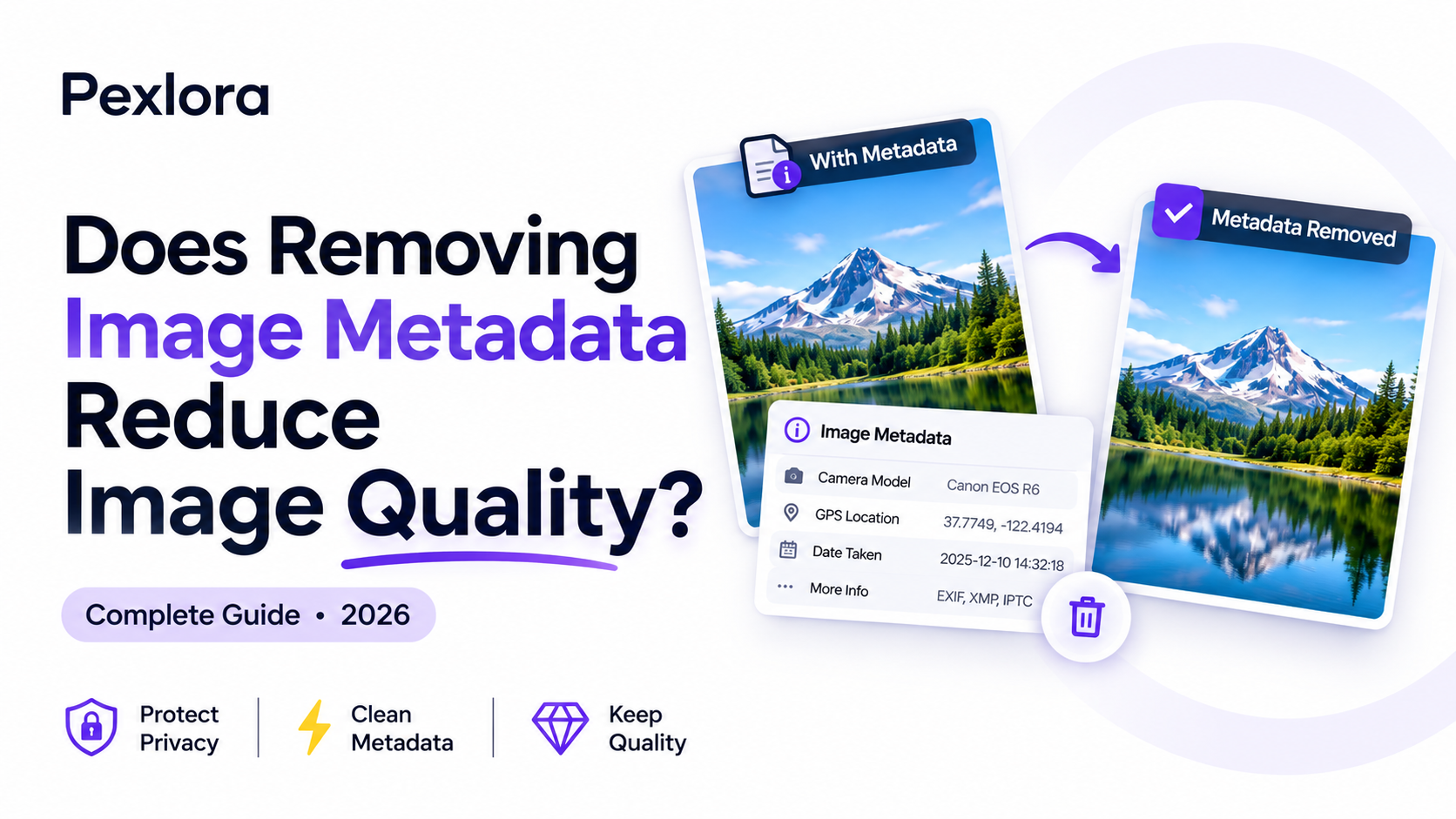
Digital images contain more than just the visible picture. They can also store additional information such as camera details, GPS coordinates, timestamps, copyright information, editing history, and software details.
This information is known as image metadata.
When you use an image metadata remover, you are essentially modifying the information stored inside the image file. But does that process affect the actual picture? Can removing EXIF data make an image blurry? Does it reduce resolution or change its colors?
The short answer is: No, removing metadata does not inherently reduce image quality. However, the method used to remove it matters.
In this guide, we will explain how metadata removal works, what happens to different image formats, which situations can affect image quality, and how to remove unnecessary metadata without compromising your images.
1. Understanding the Difference Between Image Metadata and Image Quality
Before discussing quality loss, it is important to understand that metadata and image data serve different purposes.
What is image metadata?
Image metadata is additional information stored within an image file. It describes properties of the image or provides details about how it was captured, created, or modified.
Common examples include:
Camera manufacturer and model.
Date and time of image capture.
GPS coordinates and location information.
Image dimensions and resolution.
Software and editing application details.
Copyright and creator information.
EXIF, XMP, and IPTC records.
What determines image quality?
Image quality is primarily influenced by the actual visual image data.
Some important factors include:
Resolution and pixel dimensions.
Compression level.
Color depth.
Sharpness and fine details.
Color accuracy.
Image format and encoding method.
For example, a 4000 × 3000 pixel photograph can have excellent visual quality while containing very little metadata.
Similarly, a photograph can contain extensive metadata but still have poor visual quality because it was heavily compressed.
The important distinction: Metadata describes an image, while image data determines what the picture looks like.
2. Does Removing Metadata Actually Reduce Image Quality?
In a properly implemented metadata-only removal process, the answer is no.
Image formats such as JPEG, PNG, and WebP organize image information into different structures. Metadata can often be removed without decoding and recompressing the actual image.
This means a metadata removal tool can remove supported information while preserving the original encoded image data.
For example:
Imagine you have a photograph containing:
12 MP image resolution.
Camera model information.
GPS coordinates.
Capture timestamp.
Editing software details.
If a tool removes only the metadata fields, the photograph's visual content can remain unchanged.
The resulting image can retain:
Original resolution.
Original visual details.
Original compression data.
Original appearance.
However, this depends on how the metadata remover processes the file.
A tool that decodes an image and exports it again may introduce changes even if its purpose is simply to remove metadata.
3. When Can Image Quality Actually Be Affected?
Although metadata removal itself does not require quality loss, certain image-processing methods can affect the final result.
Let's look at the most common situations.
A. Re-encoding JPEG Images
JPEG is a widely used image format that typically uses lossy compression.
When a JPEG image is opened and saved again, the application may compress it using new encoding settings.
If the new compression level is lower than the original, some visual information can be lost.
For example:
Original image: JPEG saved at a high quality setting.
Processing: Image is opened and exported again.
New image: JPEG saved using a lower quality setting.
The result may include:
Blurry fine details.
Compression artifacts.
Reduced sharpness.
Loss of subtle color information.
This is not caused by removing metadata. It is caused by re-encoding the JPEG image.
B. Resizing Images During Processing
Some image-processing tools automatically resize images to reduce file size.
For example, an original photograph might be 4000 × 3000 pixels, while the processed image becomes 1920 × 1440 pixels.
This reduces the number of pixels and can affect the amount of visible detail.
A metadata remover should not need to resize an image simply to remove EXIF information.
C. Removing Color Profiles
This is an important detail that many people overlook.
Some image files contain embedded ICC color profiles. These profiles help applications interpret and display colors correctly.
If a processing tool removes an embedded color profile, the image may appear slightly different in certain applications or displays.
Possible differences include:
Changes in color saturation.
Slight color shifts.
Differences in brightness or appearance.
Inconsistent color rendering between applications.
The underlying pixel values may remain unchanged, but their interpretation can change.
For this reason, preserving important color profiles is often a good idea when visual consistency matters.
D. Removing EXIF Orientation Information
Some cameras and smartphones store orientation information inside EXIF metadata.
Instead of physically rotating the image pixels, the device may store an orientation instruction that tells compatible applications how the image should be displayed.
If a metadata remover deletes this information without handling orientation correctly, an image might appear sideways or upside down in certain viewers.
The actual image data may remain intact, but its displayed orientation can change.
A good metadata-cleaning workflow should account for orientation information.
4. Does Metadata Removal Affect Different Image Formats?
Different image formats store metadata in different ways. Therefore, the processing method matters.
Here is a comparison of three commonly used image formats.
JPEG (JPG)
JPEG is commonly used for photographs, website images, and digital camera exports.
It can contain EXIF, XMP, IPTC, and other metadata information.
A metadata-only cleaning method can remove supported metadata sections without recompressing the JPEG image data.
Quality impact: No additional compression loss when the encoded image data is preserved.
PNG
PNG is commonly used for graphics, screenshots, logos, illustrations, and images requiring transparency.
It stores information in separate chunks, including image data and certain metadata fields.
A properly implemented PNG metadata remover can remove supported metadata chunks while preserving the encoded image content.
However, careless processing can affect color information, transparency, or other format-specific features.
Quality impact: Metadata-only removal can preserve the original image content without introducing additional compression loss.
WebP
WebP is a modern image format designed to provide efficient image compression.
Depending on how a WebP file was created, it may contain EXIF metadata, XMP metadata, and ICC color profiles.
A structure-aware metadata remover can remove supported metadata while retaining the existing image data.
Quality impact: It does not need to reduce quality when the original encoded image data is preserved.
Quick Comparison
Image format | Can metadata be removed without recompression? | Important consideration |
|---|---|---|
JPEG | Yes | Preserve orientation and color information |
PNG | Yes | Preserve color and transparency data |
WebP | Yes | Preserve image and supported container features |
The key is not simply which format you use. It is whether the processing method preserves the original image content.
5. Metadata Removal vs Image Compression: What's the Difference?
These two processes are often confused, but they have different purposes.
Metadata removal focuses on deleting additional information stored inside an image file.
Image compression focuses on reducing the amount of data needed to store or transmit an image.
Here is how they compare:
Feature | Metadata Removal | Image Compression |
|---|---|---|
Main purpose | Remove embedded information | Reduce file size |
Changes metadata | Yes | Not necessarily |
Changes image pixels | Not necessarily | Can |
Can reduce file size | Yes | Yes |
Can reduce visual quality | Not inherently | Yes, with lossy compression |
Changes resolution | Not normally | Sometimes |
For example, removing GPS information from a photograph does not require changing its resolution or reducing its sharpness.
However, compressing that same photograph using aggressive JPEG settings can noticeably affect its visual quality.
Understanding this difference helps you choose the right tool for the right task.
6. How to Remove Image Metadata Without Losing Quality
If you want to clean an image while preserving its original appearance, follow these steps.
Step 1: Keep a Copy of the Original Image
Before processing any image, save a backup of the original file.
This gives you the option to compare the results and recover the original if something goes wrong.
Step 2: Choose a Metadata Removal Tool
Use a tool that specifically supports metadata removal rather than relying on an ordinary image editor or converter.
You can explore image utilities on Pexlora to find tools for working with image files.
Check the supported formats and metadata categories before processing.
Step 3: Select Your Image
Choose the JPEG, PNG, or WebP image you want to clean.
Whenever possible, use the original image rather than a previously compressed version downloaded from a social media platform.
Step 4: Remove Unnecessary Metadata
Select the metadata categories you want to remove.
Depending on the tool, these may include:
EXIF metadata.
XMP information.
IPTC information.
GPS coordinates.
Software and editing details.
Avoid automatically removing every embedded field without reviewing its purpose.
For example, you may want to preserve copyright information, color profiles, or orientation instructions.
Step 5: Download the Processed Image
Download the cleaned image and save it separately from the original.
Do not overwrite the original until you have checked the processed version.
Step 6: Verify the Image Quality
Open both images and compare them.
Check the following:
Are the dimensions identical?
Does the image look equally sharp?
Are the colors consistent?
Is the image orientation correct?
Is transparency preserved where applicable?
Has the intended metadata been removed?
For an even stronger technical check, a structure-aware tool can compare the original encoded image data with the processed image data where the format and cleaning method support that verification.
7. How to Check Whether an Image Has Lost Quality After Metadata Removal
A visual comparison is a useful starting point, but there are additional checks you can perform.
Compare Image Dimensions
Check the width and height of both files.
For example:
Property | Original | Cleaned |
|---|---|---|
Width | 4000 px | 4000 px |
Height | 3000 px | 3000 px |
Format | JPEG | JPEG |
Resolution | Unchanged | Unchanged |
Matching dimensions are a good sign, although they do not independently prove that the image data is identical.
Compare File Sizes
Metadata removal may reduce the file size because unnecessary information has been deleted.
For example:
Original image: 3.2 MB.
Cleaned image: 3.0 MB.
A smaller file does not automatically mean the image has lost quality.
The difference may simply come from removed metadata.
However, file size alone cannot establish whether the image was recompressed.
Inspect Both Images at 100% Zoom
Open the original and cleaned images side by side.
Pay attention to:
Fine textures.
Text and small details.
Edges and sharpness.
Color gradients.
Compression artifacts.
This helps identify visible differences that may not be obvious when viewing a smaller preview.
Check the Metadata Again
Finally, inspect the cleaned image using a metadata viewer.
Confirm that the information you intended to remove is no longer present.
A successful metadata-cleaning process should be evaluated on two things: whether the metadata was removed and whether the image content was preserved.
8. Common Mistakes to Avoid When Removing Image Metadata
If preserving image quality is your priority, avoid these common mistakes.
1. Using an image converter instead of a metadata remover
Converting an image between formats can involve decoding and re-encoding. This may change the image's compression, appearance, or supported features.
2. Re-saving JPEG images repeatedly
Repeated lossy JPEG exports can introduce additional compression artifacts.
3. Removing every embedded field without checking
Some metadata, such as color profiles and orientation information, can influence how an image is displayed.
4. Assuming smaller file size means lower quality
Removing metadata can reduce file size without affecting the encoded image content.
5. Not checking the final image
Always inspect the downloaded image before sharing or publishing it.
9. Frequently Asked Questions (FAQs)
Does removing EXIF data reduce image quality?
No. Removing EXIF metadata does not inherently affect image quality. If the tool removes metadata without recompressing the image, the original encoded image data can remain unchanged.
Will removing image metadata make a photo blurry?
Not by itself. Blurriness can occur if an application resizes or recompresses the image during processing, but it is not a necessary result of metadata removal.
Does removing metadata reduce image resolution?
No. Metadata removal does not require changing image dimensions. A properly implemented metadata remover can preserve the original width and height.
Does removing metadata reduce JPEG quality?
Not necessarily. JPEG quality can remain unchanged when metadata is removed without decoding and re-encoding the compressed image data.
Can I remove metadata from PNG images without losing quality?
Yes. PNG metadata can be removed while preserving the original encoded image content. However, important color information and other structural data should be handled carefully.
Why does my image look different after removing metadata?
Possible reasons include a missing ICC color profile, removed orientation information, image re-encoding, or differences in how image viewers interpret the file.
Does removing metadata reduce file size?
It can. Removing embedded information may reduce the overall file size, but the amount depends on how much metadata the original image contains.
Is metadata removal the same as image compression?
No. Metadata removal deletes additional information associated with an image, while compression reduces the amount of data used to represent the image. They are different operations.
Can I remove metadata without changing the original image?
Yes. A metadata-only process can preserve the existing encoded image content while removing supported metadata. Always verify the output and keep an original backup.
Final Thoughts
Removing image metadata does not have to mean sacrificing image quality.
The important factor is how the image is processed.
A metadata-only removal method can clean supported EXIF, XMP, and other information while preserving the original encoded image data. On the other hand, tools that re-encode, resize, or convert images may introduce changes that affect visual quality.
Whether you are a photographer protecting personal information, a designer preparing assets, or a website owner managing image files, understanding this distinction can help you make better decisions.
Before using any metadata remover, check its supported formats, understand which fields it removes, and verify the final result.
Want to inspect or clean your image files?
Explore Pexlora and discover useful image utilities that make working with digital images easier.
Keep your images clean while making informed decisions about quality and privacy.