Pexlora
How to Convert PNG to SVG: Turn a Logo into a Vector
Only have your logo as a small PNG? Learn how to convert PNG to SVG with tracing, which images trace well, how to prepare the file, and how to clean up the vector afterwards.

5 min read
On this page
A printer asks for your logo "in vector format". A signage shop wants an SVG or AI file for a shopfront board. Your web developer says the PNG looks fuzzy on high-resolution screens. And the only copy of your logo you can find is a 400-pixel PNG someone made years ago.
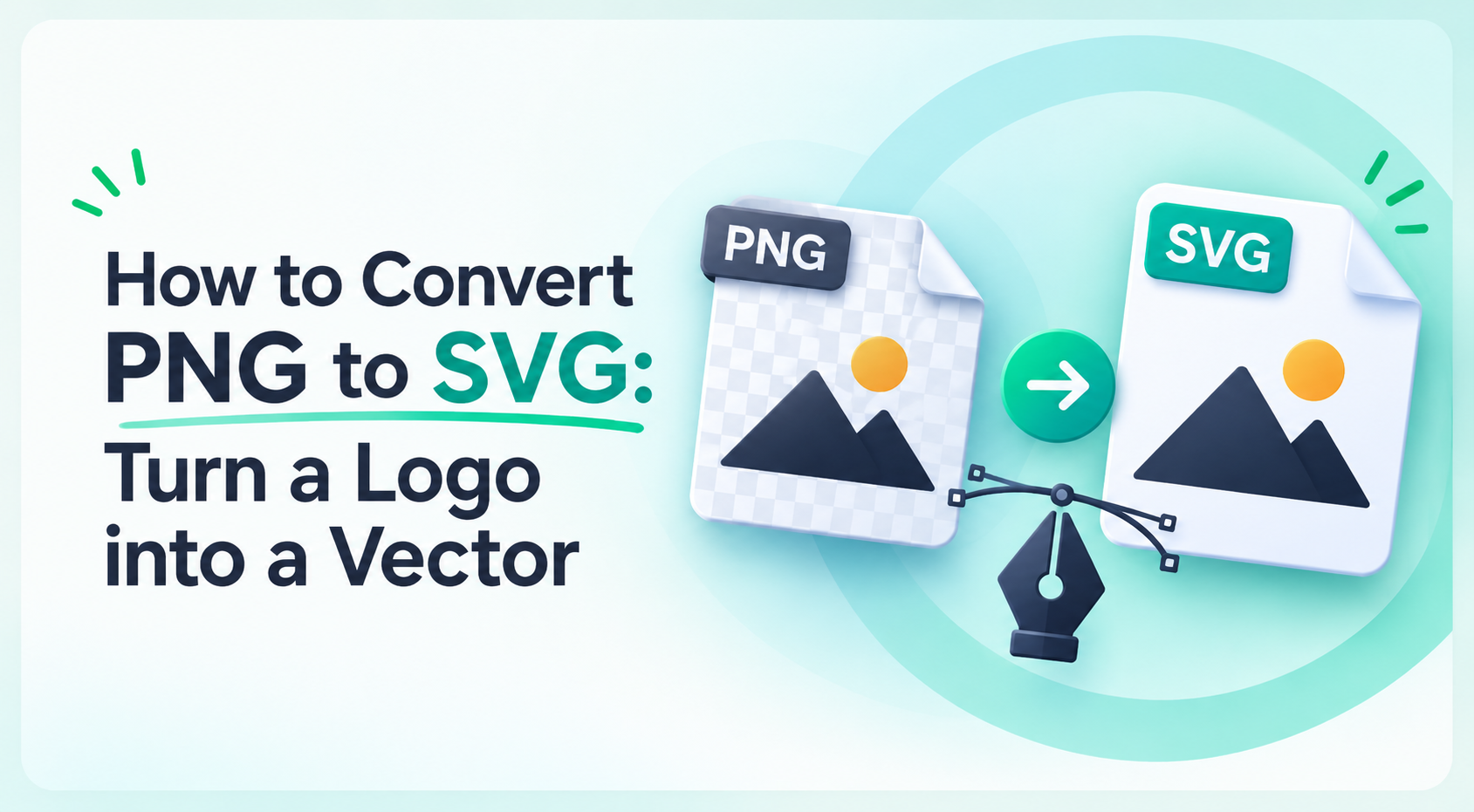
You can convert PNG to SVG with a process called tracing, which turns the pixels of an image into smooth shapes defined by maths. A clean, simple logo usually traces very well in seconds. Photos and complex artwork don't, and knowing the difference saves you a lot of frustration.
This guide explains what changes when you go from PNG to SVG, which images are good candidates, how to prepare your file for the cleanest result, and how to fix the small problems tracing leaves behind.
Raster vs vector in plain terms
A PNG is a raster image: a grid of coloured pixels. Zoom in far enough and you see squares. Enlarge it for a banner and the edges turn blurry or blocky because there's no extra detail to show.
An SVG is a vector image. Instead of pixels, it stores shapes: "draw a curve from here to here, fill it with this colour". Because shapes are described mathematically, an SVG stays perfectly sharp at any size, from a favicon to a hoarding. The format is an open web standard maintained by the W3C, and every modern browser displays it.
| Feature | PNG (raster) | SVG (vector) |
|---|---|---|
| Made of | Pixels | Shapes and paths |
| Scales up cleanly | No | Yes, to any size |
| Best for | Photos, screenshots | Logos, icons, illustrations |
| Editable colours | Hard | Easy, per shape |
| File size for simple logos | Larger at big sizes | Usually tiny |
What tracing can and can't do
Tracing software looks at the edges between colour areas in your PNG and draws vector paths along them. The classic open-source approach is Potrace, which many tools build on.
That works beautifully when the image is made of clear, flat shapes. It struggles when the image has gradients, fine textures or thousands of tiny details, because it has to approximate each one with a shape.
- Traces well: text logos, flat icons, monograms, simple badges, line art, stamps, signatures.
- Traces okay with clean-up: logos with two to five colours, illustrations with clear outlines.
- Traces poorly: photographs, logos with soft shadows or gradients, very small or blurry source images.
If your logo is a photo-realistic design, tracing won't give you a true vector. In that case the honest answer is to have it redrawn by a designer.
Prepare your PNG for a clean trace
A few minutes of preparation makes a bigger difference than any setting.
- Use the largest version you have. More pixels give the tracer more edge detail. Search old emails, your website files and social profiles for a bigger copy.
- Remove the background. A plain white or transparent background traces far more cleanly than a photo or texture behind the logo.
- Crop tight. Trim empty space around the logo with Crop Image.
- Reduce colours. If the logo should be three flat colours but the PNG has anti-aliased edges in dozens of shades, the tracer may create extra shapes. Simplifying first helps.
- Note the exact brand colours. Use the Color Palette Generator to pull the main hex codes so you can correct colours after tracing.
How to convert PNG to SVG
- Open PNG to SVG.
- Upload your prepared PNG. JPG and WebP files work too.
- The tool traces the image into editable vector paths.
- Download the SVG and open it in your browser at a large zoom to check the edges.
If you need the opposite later, for example to upload a logo to a platform that doesn't accept SVG, SVG to PNG renders it at any pixel size you choose.
Cleaning up the traced SVG
Even a good trace usually benefits from a quick tidy in a vector editor. Inkscape is free and works on Windows, Mac and Linux. Figma, Illustrator and Affinity Designer open SVGs too.
Fix colours
Select each shape and set its fill to your exact brand hex code. Traced colours are often slightly off because they come from averaged pixels.
Replace traced text with real fonts
If your logo includes a company name in a standard font, delete the traced letters and retype them in the actual font, then convert to outlines. The result is far crisper than any trace.
Smooth wobbly curves
Most editors have a "simplify" command that reduces the number of points on a path. Use it gently. Too much simplifying distorts the shape.
Delete stray specks
Tiny dots from noise or JPG artefacts sometimes become separate shapes. Select and delete them.
Using your SVG on a website
SVG logos are ideal for websites because they stay sharp on every screen, including high-density phone displays, without needing separate @2x or @3x image files. Add it like any image with an <img> tag, and give it alt text that names your business, such as your company name followed by "home" if it links to the homepage.
Before uploading, it's worth shrinking the file. Editors often save extra data inside SVGs: editor names, hidden layers, long decimal numbers and comments. Free optimisers like SVGO strip these out and can cut file size noticeably without changing how the logo looks. Our image SEO checklist covers the other basics for website images.
A worked example: a café logo for signage
A café in Kochi needed a 6-foot shopfront board, but the only logo file was a 500-pixel PNG from an Instagram profile. It had a coffee cup icon and the café name in a rounded font, on a beige background.
The owner removed the beige background, cropped the logo tight, and traced it. The cup icon came out clean. The lettering was slightly lumpy, so a designer friend retyped the name in the same rounded font in Inkscape and matched the two brand colours using hex codes from the palette tool. The final SVG was under 20 KB and printed sharply at full board size.
Frequently asked questions
Does converting PNG to SVG improve quality?
It can make edges sharp at any size, but it can't add detail that wasn't in the original. A blurry source PNG produces a rough trace.
Can I convert a photo to SVG?
Technically yes, but the result is a stylised, posterised version made of many shapes, and the file can be huge. Photos should stay as JPG, WebP or AVIF.
Is an SVG the same as an AI or EPS file?
They're all vector formats. Many printers accept SVG, and vector editors can export AI, EPS or PDF from an SVG if a printer insists on another format.
Why is my traced SVG so large?
The image probably had gradients, noise or a background, so the tracer created thousands of tiny shapes. Simplify the source PNG and trace again.
Keep a proper master file
Once you have a clean SVG, save it somewhere safe alongside PNG exports at a few common sizes, such as 512, 1024 and 2048 pixels. The next time anyone asks for your logo, you'll have the right format ready instead of hunting through old emails.